
Create a category
- In the sidebar, open Your store > Products.
- Click Add.
- Select Category.
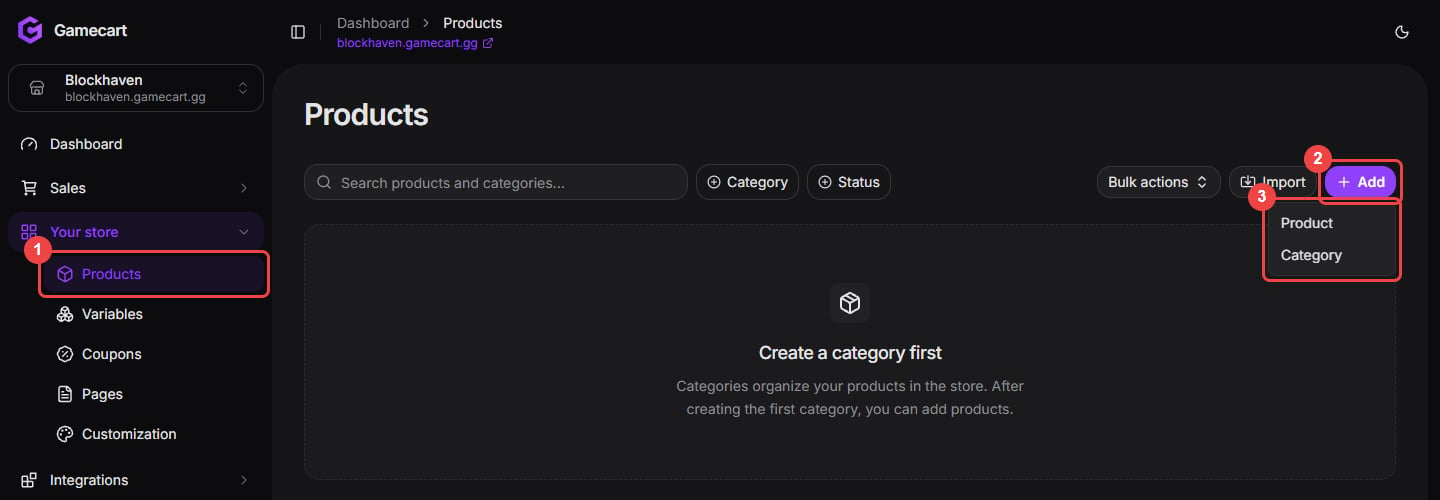
Categories and products both start from the Add menu.
- Enter a Name, such as
Ranks. The Slug fills in by itself and becomes part of the category URL. - To place it inside another category, choose it under Parent Category. Otherwise, keep None (top-level).
- Click Create category.
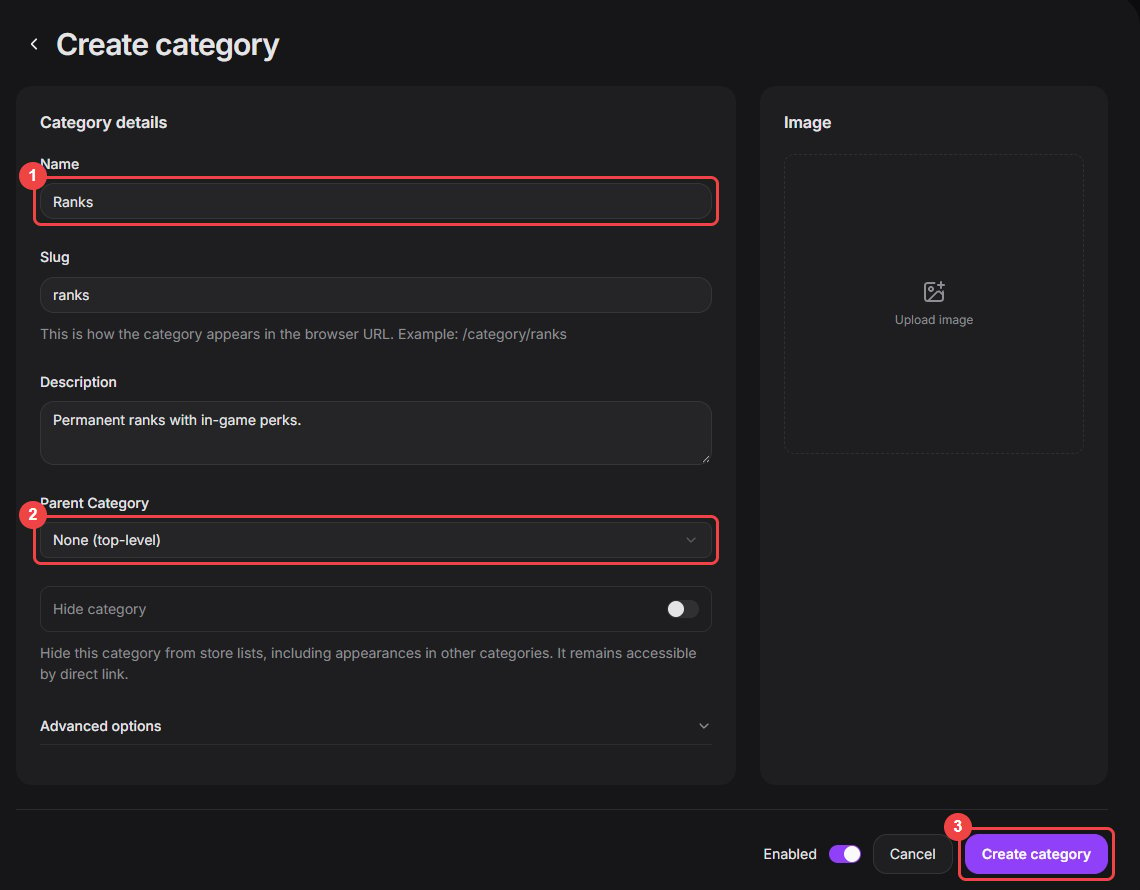
Name the category and choose where it sits in the catalog.
Create a product
- On Your store > Products, click Add and select Product.
- Enter a Name and choose the Category.
- Write the Description buyers see on the storefront.
- Set the Price. Leave Duration empty for a permanent product, or enter a number of days for one that expires, such as a 30-day rank.
- Optional: add an image. Use PNG, JPEG, or WebP up to 5 MB. 512×512 px works best.
- Click Create product.
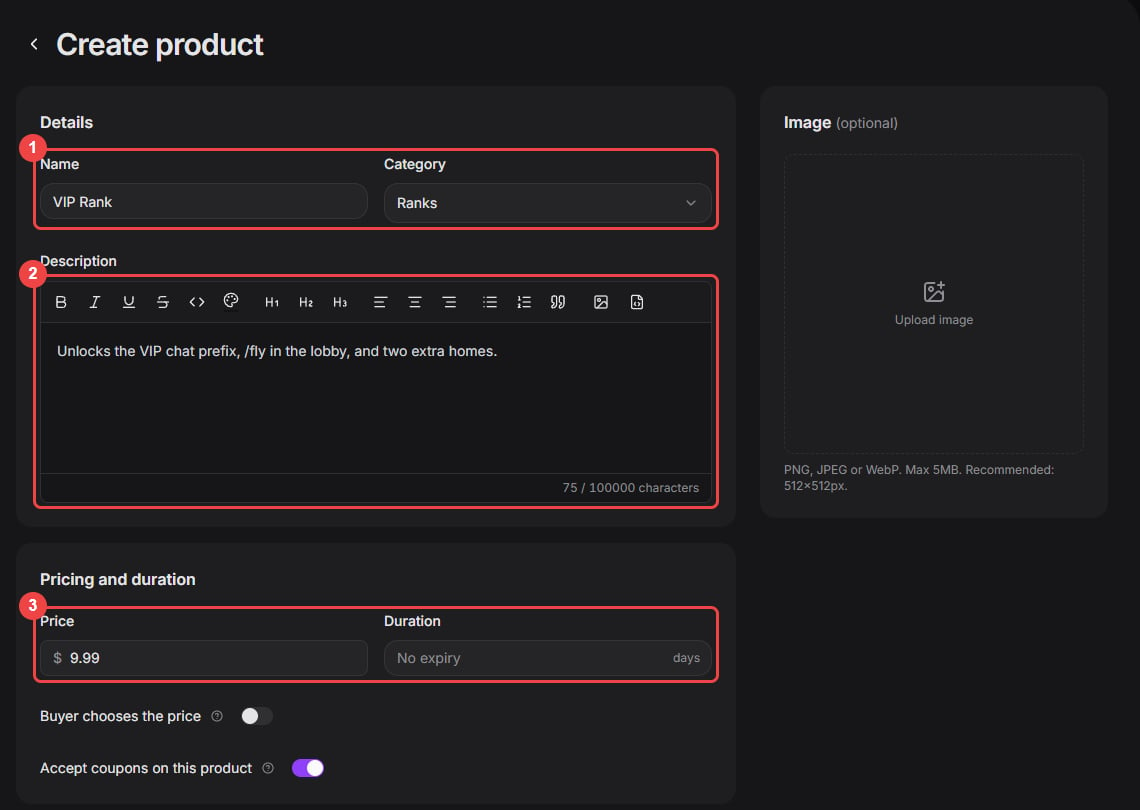
Fill in the details and the price. Duration is optional.
- Buyer chooses the price turns the price into the minimum and suggested amount. Buyers can pay that amount or more, and coupons never apply to this product.
- Accept coupons on this product is on by default. Turn it off to keep a product out of every coupon.
Organize the catalog
The products page lists every category with its products underneath.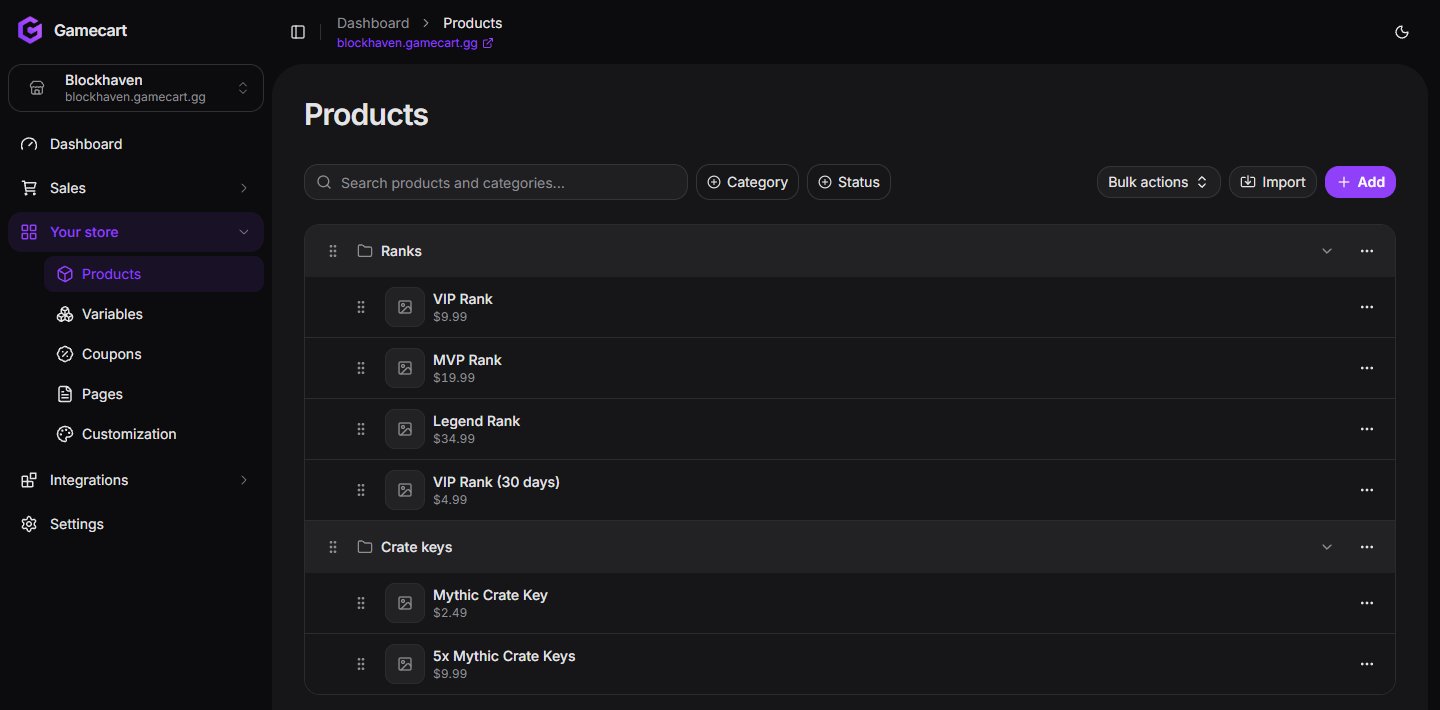
The catalog groups products under their categories.
- Drag a category or product by its handle to change the order buyers see.
- Use Bulk actions to change the price, visibility, or category of several products at once.
- Use Import to bring an existing catalog into Gamecart.