
Create an account
- Go to dash.gamecart.gg and click Sign up.
- Enter your email and click Continue.
- Enter the 6-digit code that Gamecart sent to your email.
- Fill in your name and password, then click Create Account.
- Sign in with the new account.
Pick your game
After you sign in for the first time, the dashboard opens the store setup.- Under Game, select the game your server runs: Minecraft, Hytale, FiveM, or Other / Generic.
- Click Continue.
Pick the game your server runs.
Fill in the store details
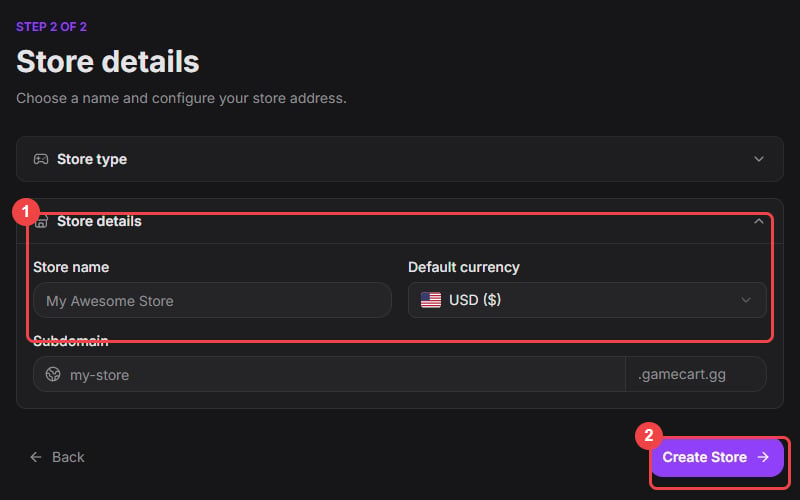
- Store name: the name buyers see. Use 3 to 32 characters.
- Default currency: the currency for every price and payment. Choose USD, BRL, EUR, or GBP.
- Subdomain: the address of your storefront, such as
blockhaven.gamecart.gg. The dashboard fills it from the store name and tells you whether it is available. - Click Create Store.
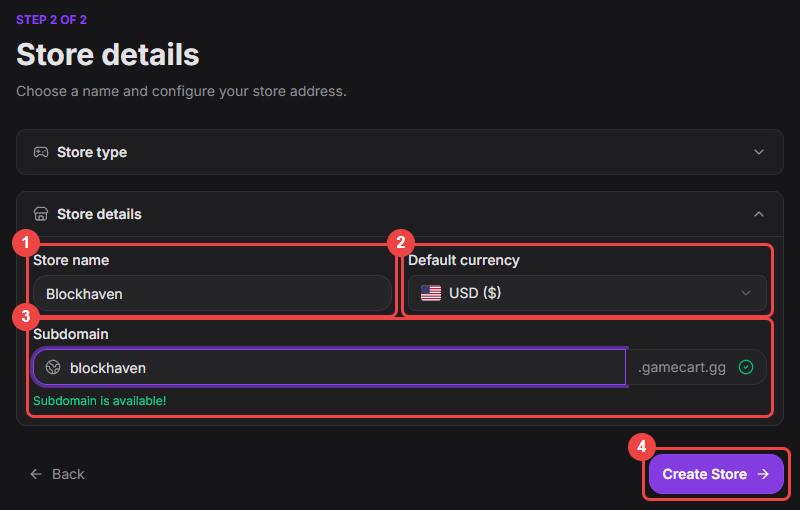
Name the store, choose its currency, and confirm the subdomain.
Next steps
When the store is ready, the dashboard opens on its home page. The store picker in the top left switches between your stores.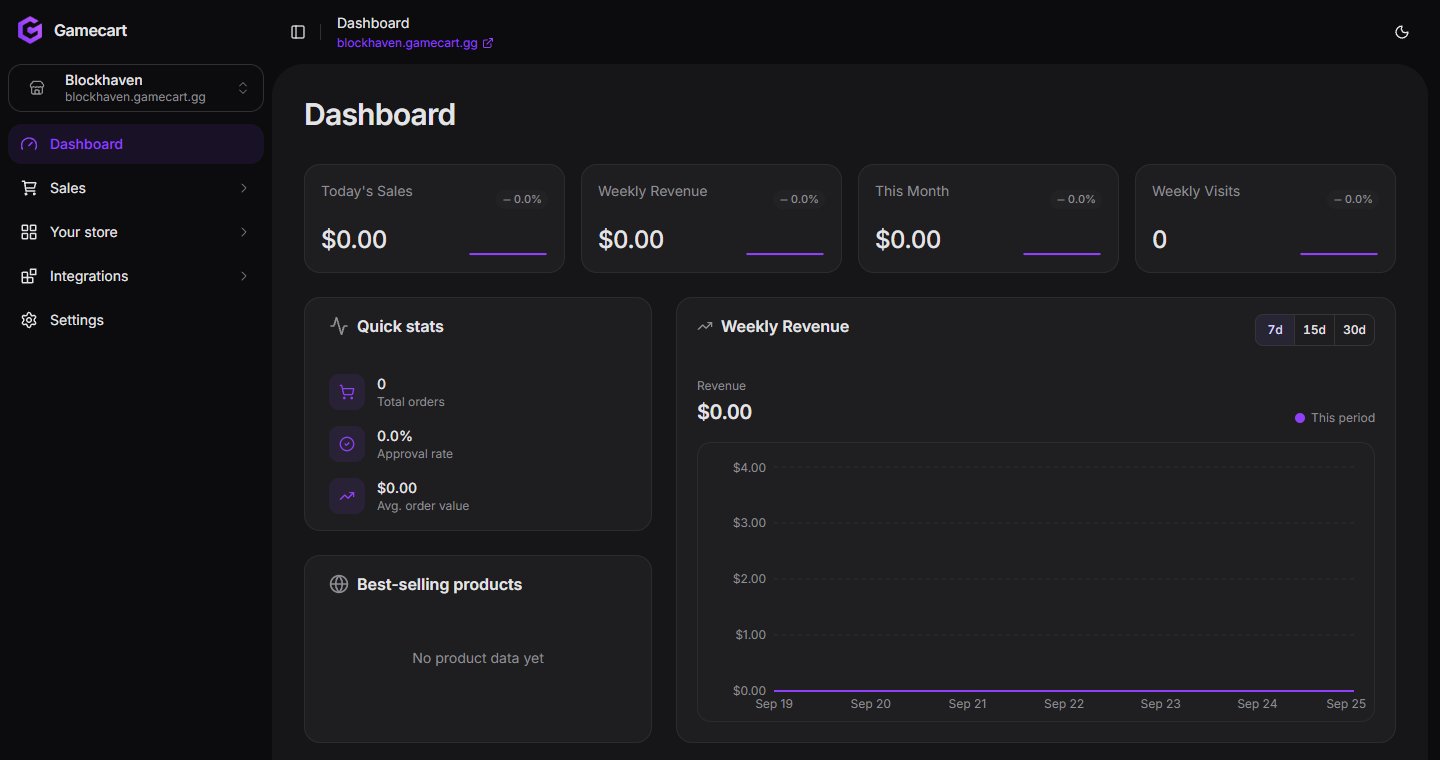
The dashboard home for a new store.
Add products
Create categories and the products buyers can purchase.
Set up payments
Add the gateways buyers can pay with.