
Choose a delivery method
Setup path
1
Create the server integration
Open Integrations > Servers, click Create Server, and copy the token if the method uses one.
2
Install or configure delivery
Follow the setup guide for your game and delivery method.
3
Add product commands
Select the target server and add the commands Gamecart will queue for the product.
4
Run a controlled test
Place a controlled order, then check the command and troubleshoot any delivery problem.
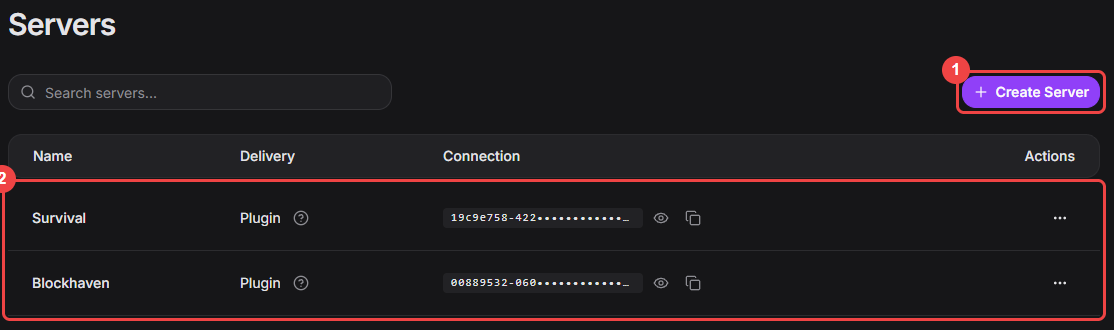
Integrations > Servers lists every delivery connection of the store.
Connect a server
Create a server integration and protect its connection token.

Install the Minecraft executor
Connect a Minecraft server or proxy to Gamecart command delivery.

Install the Hytale executor
Connect a Hytale server to Gamecart command delivery.

Install the FiveM executor
Connect a FiveM server resource to Gamecart command delivery.
Configure Minecraft RCON
Connect Gamecart directly to a compatible Minecraft RCON server.
Configure product delivery commands
Add server commands and select the product events that trigger them.
Test and troubleshoot server delivery
Run a controlled test, understand command states, and resolve common delivery issues.