
Add a command to a product
1
Open the product
Open Your store > Products. Create a product, or open the row menu of an existing one and select Edit.
2
Add a command
In the Commands section, click New command.
3
Choose when it runs
Select On Purchase, On Expiration, or On Dispute, based on when the command should run.
4
Select the target server
Choose the server integration that should receive the command.
5
Write the console command
Enter the command exactly as the target server expects it. Do not add a leading slash unless that runtime specifically requires one.
6
Set delivery behavior
Click the gear icon on the row. Turn on Offline delivery if the command may run while the player is offline. Turn on Ignore quantity if it should run once even when the buyer purchases more than one unit.
7
Save the product
Click Save.
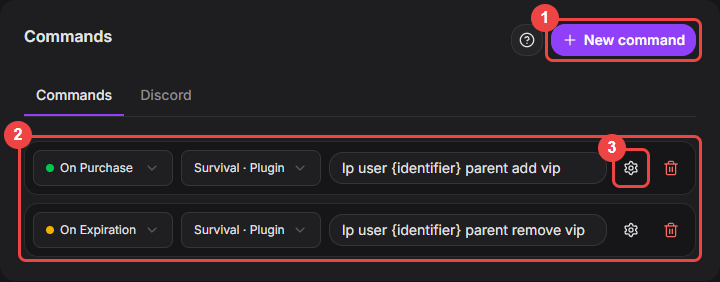
Each row has a trigger, a target server, and the console command.
Understand triggers and quantity
- On Purchase queues the command after the payment is approved.
- On Expiration is scheduled after the payment is approved only when the purchased item has an expiration date.
- On Dispute also covers refund, rejection, cancellation, and dispute payment outcomes.
- Ignore quantity queues the command once. When it is disabled, Gamecart queues one command for each purchased unit.
Use the recipient placeholder
Use{identifier} where the command needs the buyer’s delivery identity.
{identifier} contains the recipient value collected at checkout. Its label and validation depend on your store’s game configuration. Seller-created variables can collect other checkout information, but they cannot replace the delivery identifier.