
/v1/seller. Create one for each system that talks to your store.
Gamecart stores only a hash and the prefix of each token. You see the full value once, when you create or regenerate it.
Before you begin
You need:- The Enterprise plan. A store can have up to 20 tokens.
- Permission to manage integrations for the store.
- A backend service that keeps secrets out of browser code.
Create a token in the dashboard
- Open Integrations > API.
- Click Create token.
- Enter a Name for the system that will use the token, such as
Order sync. The name shows up on the order notes that the token leaves. - Under Scopes, check what the integration needs. Scopes are grouped by resource, with Read and Write columns. Orders read comes checked.
- Click Create token.
- Copy the token from Save this token now and store it in your secret manager. Tokens start with
gci_.
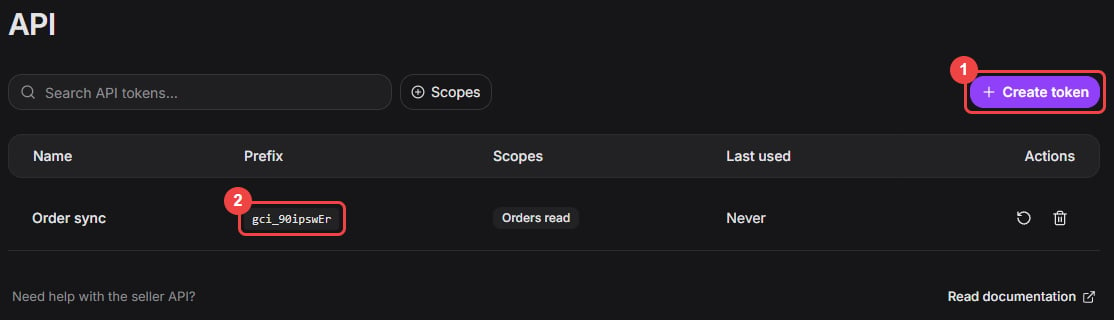
After you close the dialog, only the prefix stays visible.
Choose scopes
Checking a write scope also checks the read scope of the same resource. You can uncheck it, and the dialog warns you, because write scopes never include read access.
The full list of scopes and what each allows is on Authentication.
Regenerate or delete a token
Use Regenerate token if a token may have leaked or your secret policy requires a new value. The current value stops working immediately, and Gamecart shows the replacement once. The name and scopes stay the same. Use Delete token when you retire an integration or no longer trust it. Deletion is permanent, and the token stops working immediately. Notes it left on orders keep its name.Use a token from your backend
Pass the token as a Bearer token:Recommended setup
- Create one token per external system. Each token has its own rate limit.
- Name tokens after the system, not a person.
- Keep scopes minimal, and grant Approve orders only to systems that confirm payments.
- Regenerate tokens after a team member leaves or when you suspect a leak.
- Delete unused tokens instead of keeping them as backups.