> ## Documentation Index
> Fetch the complete documentation index at: https://docs.gamecart.gg/llms.txt
> Use this file to discover all available pages before exploring further.
# Payment gateways
> Add, enable, and order the payment methods buyers see at checkout
A gateway is a payment method buyers can pick at checkout. You manage them in **Settings > Gateways**. Buyers see the enabled gateways in the same order as your list.
| Gateway | Store currency | Setup guide |
| -------------- | -------------------- | ----------------------------------------------------------------------------------------------------------------------------- |
| Stripe | Any | [Stripe](/tutorials/store-setup/payment-gateways/stripe) |
| PayPal | Any | [PayPal](/tutorials/store-setup/payment-gateways/paypal) |
| Mercado Pago | BRL only | [Mercado Pago](/tutorials/store-setup/payment-gateways/mercado-pago) |
| Pix | BRL only | [Pix (Mercado Pago)](/tutorials/store-setup/payment-gateways/pix) or [Pix (Efí)](/tutorials/store-setup/payment-gateways/efi) |
| Manual | Any | [This page](#manual-payments) |
| Custom gateway | Any, Enterprise plan | [Custom gateways](/guides/custom-gateways) |
Cards and wallets. Any store currency.
Payments to a PayPal receiving account. Any store currency.
Checkout Pro. BRL stores only.
Pix through Mercado Pago. BRL stores only.
Pix through Efí. BRL stores only.
A provider you run yourself. Enterprise plan.
## Add a gateway
1. In the dashboard, open **Settings > Gateways**.
2. Click **Add gateway**.
3. Find the provider and click **Add**.
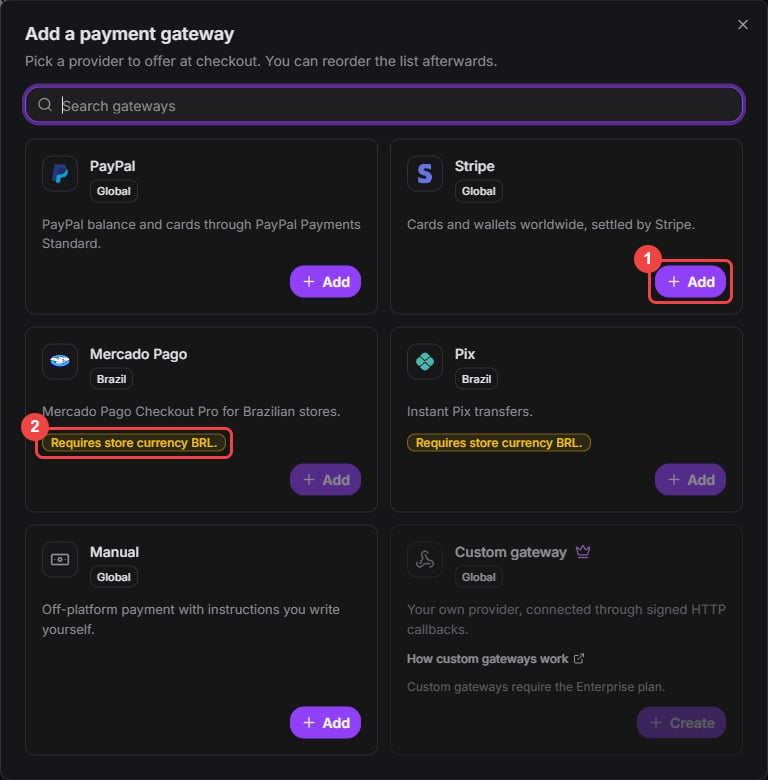 4. The configuration window opens by itself. Paste the credentials from the provider, then click **Save Configuration**. Each provider guide shows where to find them.
A new gateway starts disabled, so buyers don't see it until you turn it on.
## Enable and order your gateways
4. The configuration window opens by itself. Paste the credentials from the provider, then click **Save Configuration**. Each provider guide shows where to find them.
A new gateway starts disabled, so buyers don't see it until you turn it on.
## Enable and order your gateways
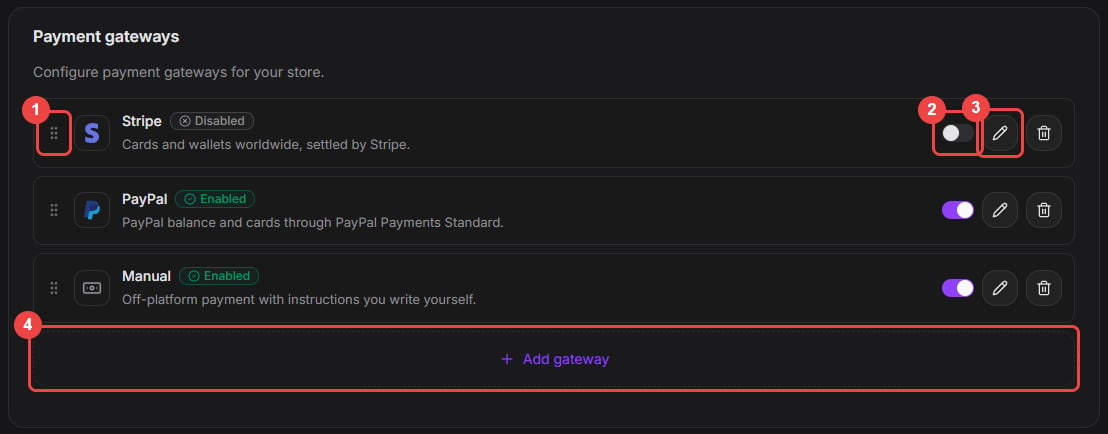 1. Drag a row by its handle to change the checkout order.
2. Turn on the switch to offer the gateway at checkout. Gamecart checks the saved credentials before it enables the gateway.
3. Click the pencil to edit the credentials. Saved secrets appear masked, and you only need to paste a value when you replace it.
4. Click **Add gateway** to add another provider.
The trash icon removes a gateway and deletes its saved credentials. You can't remove a gateway while one of its orders is still pending.
## Manual payments
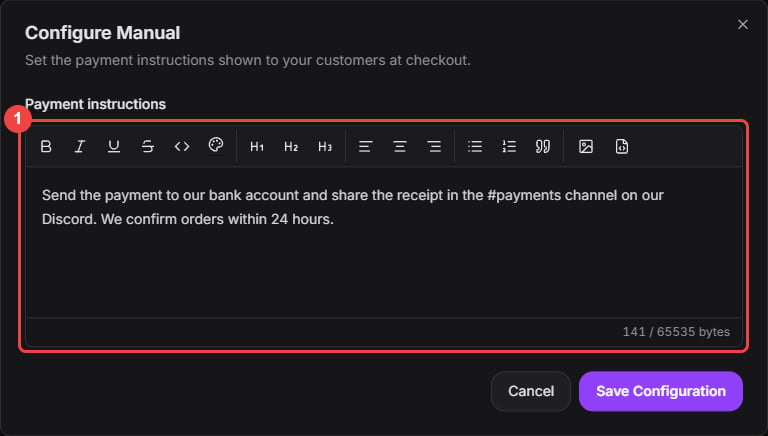
The Manual gateway covers payments that happen outside Gamecart, such as a bank transfer. At checkout, buyers see the instructions you write.
1. Add **Manual** from the **Add gateway** window.
2. Write the **Payment instructions**: where to pay and how to send proof.
3. Click **Save Configuration**, then turn the gateway on.
1. Drag a row by its handle to change the checkout order.
2. Turn on the switch to offer the gateway at checkout. Gamecart checks the saved credentials before it enables the gateway.
3. Click the pencil to edit the credentials. Saved secrets appear masked, and you only need to paste a value when you replace it.
4. Click **Add gateway** to add another provider.
The trash icon removes a gateway and deletes its saved credentials. You can't remove a gateway while one of its orders is still pending.
## Manual payments
The Manual gateway covers payments that happen outside Gamecart, such as a bank transfer. At checkout, buyers see the instructions you write.
1. Add **Manual** from the **Add gateway** window.
2. Write the **Payment instructions**: where to pay and how to send proof.
3. Click **Save Configuration**, then turn the gateway on.
 A manual order stays **Pending** until you confirm the payment yourself. Open the order in **Sales > Orders** and click **Approve**. Delivery starts after the approval.