> ## Documentation Index
> Fetch the complete documentation index at: https://docs.gamecart.gg/llms.txt
> Use this file to discover all available pages before exploring further.
# Set up a custom domain
> Connect your own domain to a Gamecart storefront
You can use a domain you control for your Gamecart storefront. Once its DNS records are valid, Gamecart manages routing and TLS.
## Before you begin
You need:
* A Gamecart plan that includes custom domains.
* Access to your store's **Settings**.
* Control of the domain's DNS records.
* A hostname to use for your storefront, such as `store.example.com`.
## Add your domain in the dashboard
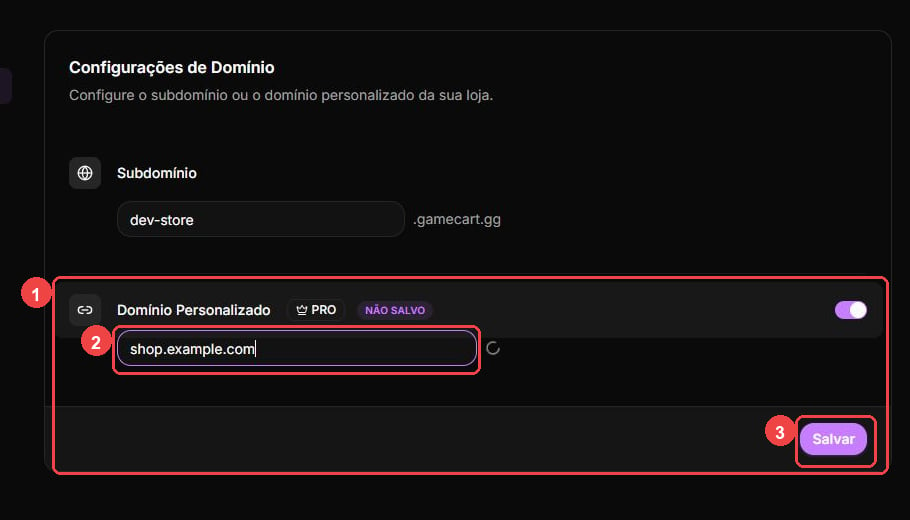
1. In the dashboard, open **Settings > Domain**.
2. Enable **Custom domain**.
3. Enter your hostname, such as `store.example.com`.
4. Save the change.
Enter only the hostname. Do not include `https://`, a path, or a trailing slash.
 ## Create the DNS records
After you save the hostname, the dashboard displays the DNS records for your store. Add those exact values at your DNS provider.
| Purpose | Type | Name | Value |
| -------------------------- | ------------------------------------------------- | ---------------------------- | --------------------------------------------------------- |
| Storefront routing | CNAME or provider-supported apex alias/flattening | The configured hostname | `dns.gamecart.gg` |
| TLS validation and renewal | CNAME | `_acme-challenge.` | The unique `*.dcv.cloudflare.com` value shown by Gamecart |
## Create the DNS records
After you save the hostname, the dashboard displays the DNS records for your store. Add those exact values at your DNS provider.
| Purpose | Type | Name | Value |
| -------------------------- | ------------------------------------------------- | ---------------------------- | --------------------------------------------------------- |
| Storefront routing | CNAME or provider-supported apex alias/flattening | The configured hostname | `dns.gamecart.gg` |
| TLS validation and renewal | CNAME | `_acme-challenge.` | The unique `*.dcv.cloudflare.com` value shown by Gamecart |
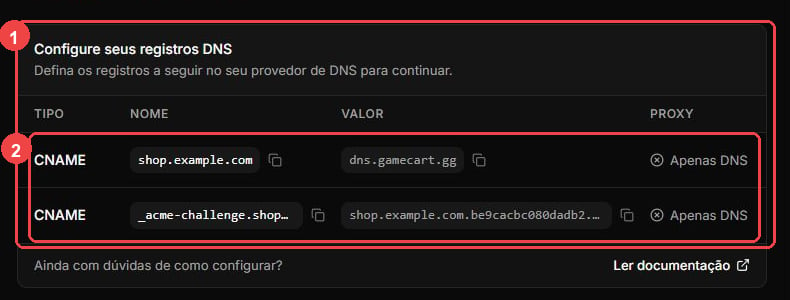 If your DNS provider offers proxying, set both records to **DNS only**.
DNS providers format record names differently. Some expect the full hostname, while others append the zone automatically. Check the resulting record before you save it.
## Use a subdomain for the simplest setup
To use an apex domain such as `example.com`, your DNS provider must support CNAME flattening or an equivalent ALIAS record. Otherwise, use a subdomain such as `store.example.com`.
## Check activation
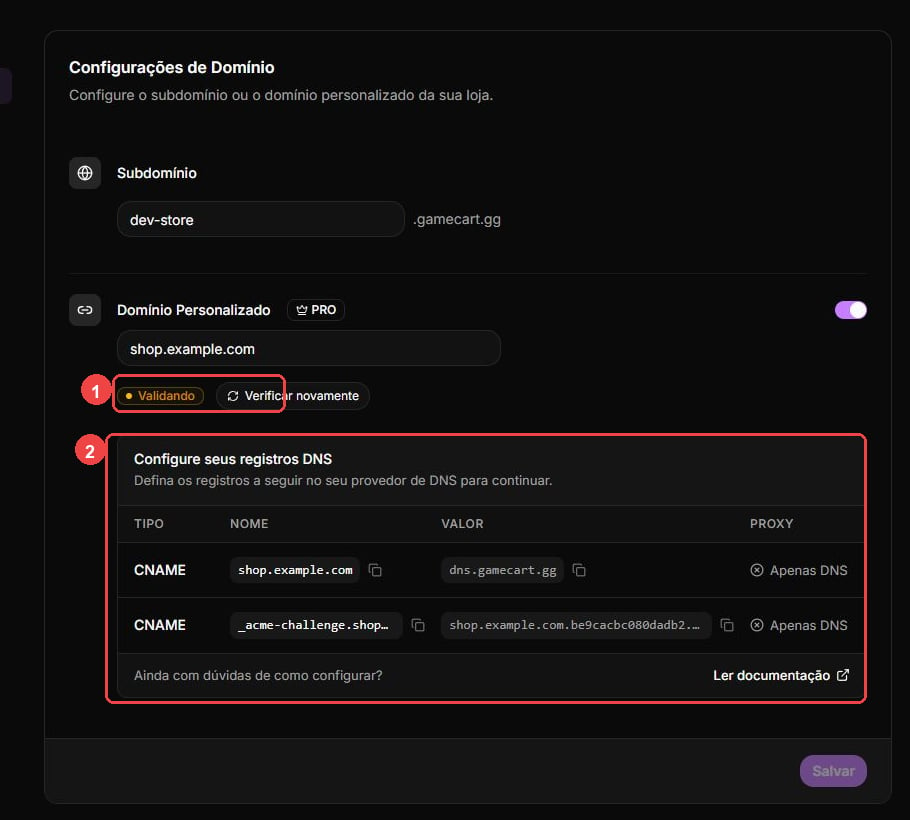
After you add the records, Gamecart checks their status with the provider. This check runs periodically, so activation may take some time.
* `PENDING` means the records or provider validation are still incomplete.
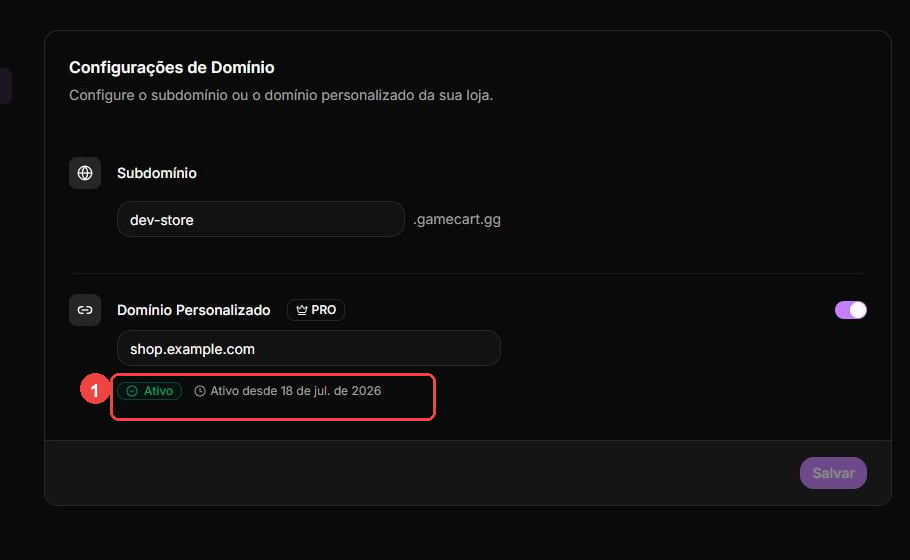
* `ACTIVE` means routing and TLS are active.
* `FAILED` means validation reached a permanent failure. Check your records before you select **Recheck** in **Settings > Domain**.
If your DNS provider offers proxying, set both records to **DNS only**.
DNS providers format record names differently. Some expect the full hostname, while others append the zone automatically. Check the resulting record before you save it.
## Use a subdomain for the simplest setup
To use an apex domain such as `example.com`, your DNS provider must support CNAME flattening or an equivalent ALIAS record. Otherwise, use a subdomain such as `store.example.com`.
## Check activation
After you add the records, Gamecart checks their status with the provider. This check runs periodically, so activation may take some time.
* `PENDING` means the records or provider validation are still incomplete.
* `ACTIVE` means routing and TLS are active.
* `FAILED` means validation reached a permanent failure. Check your records before you select **Recheck** in **Settings > Domain**.
 ## Troubleshoot DNS setup
If the domain does not become active:
* Check that the configured hostname and `_acme-challenge` record were not expanded into the wrong name by your DNS provider.
* Confirm that both records are **DNS only** when your provider offers proxying.
* Remove or correct stale, conflicting `A`, `AAAA`, or `CNAME` records for the same hostname.
* For an apex domain, confirm that your provider supports flattening or an ALIAS-equivalent record.
* Wait for DNS changes to propagate before selecting **Recheck**.
Do not delete working DNS records until you understand the replacement path. A record that looks unrelated can still serve another website, email service, or integration.
## Troubleshoot DNS setup
If the domain does not become active:
* Check that the configured hostname and `_acme-challenge` record were not expanded into the wrong name by your DNS provider.
* Confirm that both records are **DNS only** when your provider offers proxying.
* Remove or correct stale, conflicting `A`, `AAAA`, or `CNAME` records for the same hostname.
* For an apex domain, confirm that your provider supports flattening or an ALIAS-equivalent record.
* Wait for DNS changes to propagate before selecting **Recheck**.
Do not delete working DNS records until you understand the replacement path. A record that looks unrelated can still serve another website, email service, or integration.