> ## Documentation Index
> Fetch the complete documentation index at: https://docs.gamecart.gg/llms.txt
> Use this file to discover all available pages before exploring further.
# Server delivery overview
> Choose how Gamecart sends purchase commands to your game server
Gamecart queues fulfillment commands when an order reaches the required payment state. The delivery method must match your store's game and server runtime.
## Choose a delivery method
| Store game | Supported methods | Recommended starting point |
| ---------- | -------------------------------------------------------- | -------------------------------------------- |
| Minecraft | Gamecart plugin or RCON | Use the plugin for most servers and proxies. |
| Hytale | Gamecart plugin | Install the Hytale executor. |
| FiveM | Gamecart script | Install the FiveM server resource. |
| Other | Compatible connector or Source/Minecraft-compatible RCON | Confirm runtime compatibility before setup. |
Use one active executor installation for each server token. Reusing a token across installations can send a command to the wrong runtime.
## Setup path
Open **Integrations > Servers** and create the connection. Copy its token if the selected method uses one.
Follow the setup guide for your game and delivery method.
Select the target server and add the commands Gamecart will queue for the product.
Place a controlled order, then [check the command and troubleshoot any delivery problem](/tutorials/server-delivery/troubleshooting).
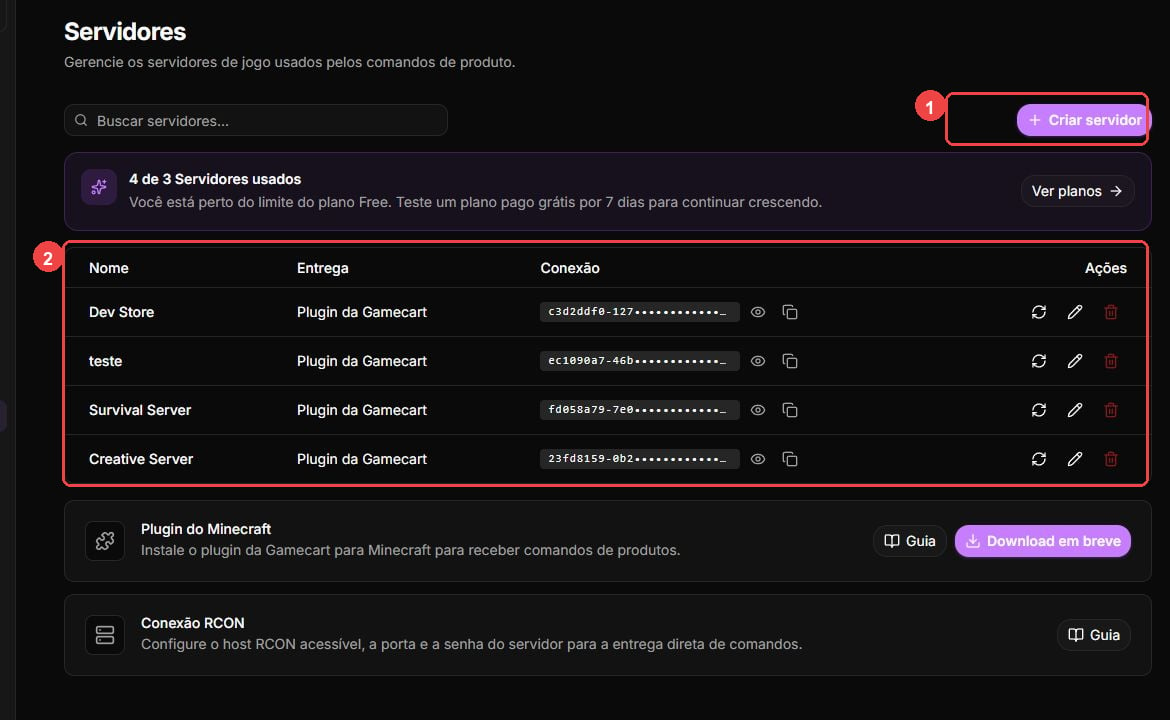 Create a server integration and protect its connection token.
Connect a Minecraft server or proxy to Gamecart command delivery.
Connect a Hytale server to Gamecart command delivery.
Connect a FiveM server resource to Gamecart command delivery.
Connect Gamecart directly to a compatible Minecraft RCON server.
Add server commands and select the product events that trigger them.
Run a controlled test, understand command states, and resolve common delivery issues.
Create a server integration and protect its connection token.
Connect a Minecraft server or proxy to Gamecart command delivery.
Connect a Hytale server to Gamecart command delivery.
Connect a FiveM server resource to Gamecart command delivery.
Connect Gamecart directly to a compatible Minecraft RCON server.
Add server commands and select the product events that trigger them.
Run a controlled test, understand command states, and resolve common delivery issues.