> ## Documentation Index
> Fetch the complete documentation index at: https://docs.gamecart.gg/llms.txt
> Use this file to discover all available pages before exploring further.
# Configure product delivery commands
> Set the commands Gamecart sends when a product reaches a delivery trigger
Product commands tell Gamecart what to send to a server integration after a purchase event.
## Add a command to a product
Open **Products** in the dashboard. Create a product or edit an existing one.
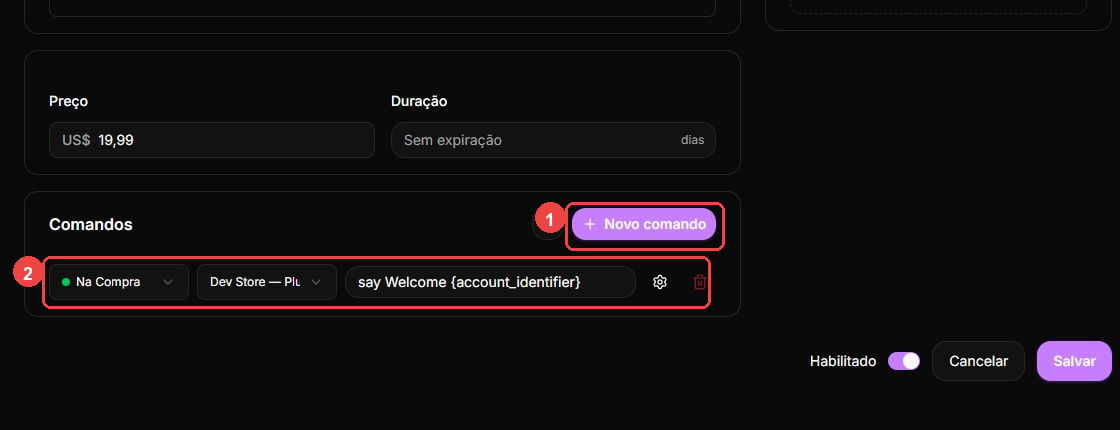
Find **Commands** and select **New command**.
Select **On Purchase**, **On Expiration**, or **On Dispute**, based on when the command should run.
Choose the server integration that should receive the command.
Enter the command exactly as the target server expects it. Do not add a leading slash unless that runtime specifically requires one.
Enable **Offline delivery** if the command may run while the player is offline. Enable **Ignore quantity** if it should run once even when the buyer purchases more than one unit.
Save the product to apply the command configuration.
 ## Understand triggers and quantity
* **On Purchase** queues the command after the payment is approved.
* **On Expiration** is scheduled after the payment is approved only when the purchased item has an expiration date.
* **On Dispute** also covers refund, rejection, cancellation, and dispute payment outcomes.
* **Ignore quantity** queues the command once. When it is disabled, Gamecart queues one command for each purchased unit.
## Use the recipient placeholder
Use `{account_identifier}` where the command needs the buyer's delivery identity.
```text theme={"dark"}
lp user {account_identifier} parent add vip
```
`{account_identifier}` contains the recipient value collected at checkout. Its label and validation depend on your store's game configuration. Seller-created variables can collect other checkout information, but they cannot replace the delivery identifier.
Use the placeholder help in **Commands** to review the available placeholders before saving a command.
## Understand triggers and quantity
* **On Purchase** queues the command after the payment is approved.
* **On Expiration** is scheduled after the payment is approved only when the purchased item has an expiration date.
* **On Dispute** also covers refund, rejection, cancellation, and dispute payment outcomes.
* **Ignore quantity** queues the command once. When it is disabled, Gamecart queues one command for each purchased unit.
## Use the recipient placeholder
Use `{account_identifier}` where the command needs the buyer's delivery identity.
```text theme={"dark"}
lp user {account_identifier} parent add vip
```
`{account_identifier}` contains the recipient value collected at checkout. Its label and validation depend on your store's game configuration. Seller-created variables can collect other checkout information, but they cannot replace the delivery identifier.
Use the placeholder help in **Commands** to review the available placeholders before saving a command.